

Supporting Nextcloud as a bridge backend is strategically important for us. While we have add-ons for private systems like Google Sheets and Airtable, our commitment is to prioritize support for open source solutions like Nextcloud and Grist. That’s why we want to explain in more detail how the Nextcloud add-on works.
Understaing WebDAV
To understand how the add-on works, we should start talking about WebDAV. One of the key features of Nextcloud is its support for this protocol, which allows users to access their files through a web browser. This is the same protocol that Posts Bridge uses when it needs to communicate with Nextcloud.
Ok, but what is WebDAV?
“WebDAV (Web Distributed Authoring and Versioning) is a set of extensions to the Hypertext Transfer Protocol (HTTP), which allows user agents to collaboratively author contents directly in an HTTP web server ( … ) allowing the Web to be viewed as a writeable, collaborative medium and not just a read-only medium.”
— Wikipedia, November 14, 2025
Since WebDAV is an extension of the standard HTTP protocol, and Posts Bridge works on top of the WordPress native HTTP client, it was easy for us to set up a bridge that capable of synchronize WordPress posts with Nextcloud CSV files.
Backend connection setup
When you set up a backend connection in Posts Bridge and bind it to a bridge, you can trigger backend ping checks to verify that the connection is working correctly.
The Nextcloud add-on will verify that the backend URL is correct and that the user credentials are valid by making a request to the backend API. Let’s explain in more detail how this is done:
Nextcloud exposes its WebDAV API under the endpoint /remote.php/dav/files/${username}. This URL path is appended to the base URL of the backend by Posts Bridge. For example, if your have your backend registered with the base URL https://nc.example.coop, the endpoint where backend pings will be done will be https://nc.example.coop/remote.php/dav/files/${username}.
Nextcloud supports to be exposed under a subroute of a domain, such as https://example.coop/nc. If that is the case, the resulting endpoint will be https://example.coop/nc/remote.php/dav/files/${username}.
If you find yourself in the latter case, double check that the backend URL has the subroute so that the resulting URL matches one of the examples. Note that the /remote.php/dav/files/${username} is added dynamically by PHP and the base URL of the backend should only contain the root URL of your Nextcloud.
Let’s talk about the ${username} part of these URLs. This is a variable part that is replaced by the username from the backend credential. The WebDAV protocol works with the Basic HTTP authentication schema. This means that, in order to grant access to your private files, requests should includes an authorization header with your user login and your password.
In Posts Bridge you can attach this kind of credentials to the backend. If you are working with the template wizard you will do it in the first step. If you are trying to do it manually, start by registering a Basic credential with your login and password and then bind it to the backend.
To work properly, the user login should be your username, not your email, as the username in the credential is the value that Posts Bridge will use to replace the ${username} part of the endpoint. If you try to authenticate with your user email the resulting URL will be invalid.
Form submissions synchronization
Once you have configured your bridge and checked the backend connection, the bridge is ready to go. The add-on bridges will synchronize WordPress posts with a CSV file in your Nextcloud and store each row in the table using as a post and map each column to a post field, post meta or taxonomy term. That’s why the add-on bridges does not require an endpoint, but a file path.
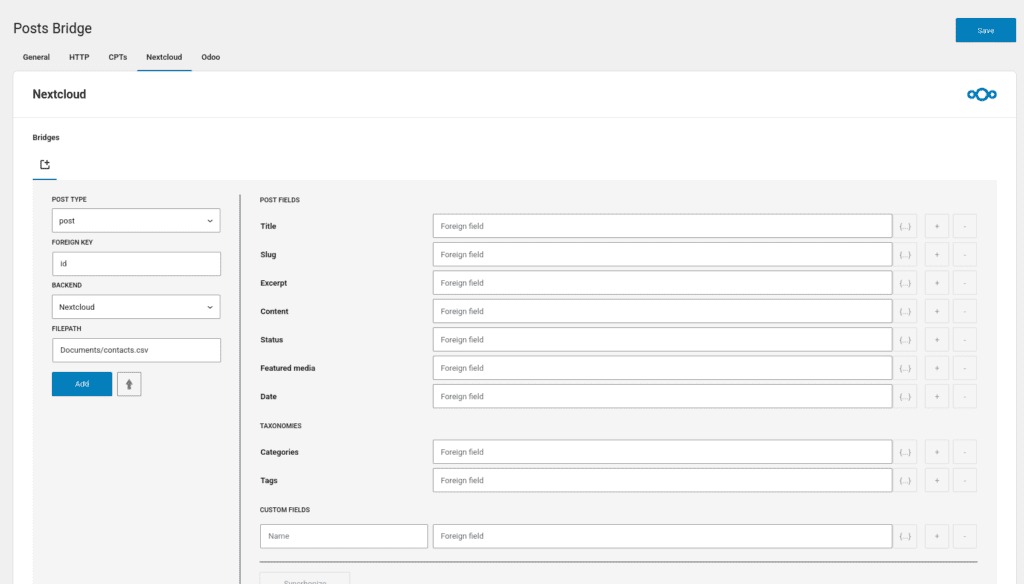
This file path must start relative to your user root folder in the Nextcloud files app. In the image above, the file path points to /my-folder/contacts.csv. That means that in your personal root folder, in Nextcloud, there must be a sub-folder called my-folder, and, inside the folder, a file called contacts.csv. If this file does not exists, the bridge will receive a not found error when trying to access the file.
Under the hood, Posts Bridge will synchronize a local copy of that CSV file with its remote counterpart. On each synchronization loop, the bridge will compare the modification date of both files to check which is the latest version. In case you’ve edited the table in Nextcloud, Posts Bridge will update its local copy with the contents of the remote file. With this approach, Posts Bridge ensures that your edits are not overwritten by the bridge.
Final thoughts
This posts originated from a thread in the Forms Bridge support forum. A user requested help with the bridge configuration process because he was experiencing errors with the backend connection. After a long exchange of messages, we managed to solve the problem. During the process, we produced some knowledge that we are sharing here today, and we released new version of the plugin with improvements in the log coverage that helps the user to find out what the problem was.
For us this story is a good example of how the support forum is a channel through which you can help your users and take care of the community , but it is also a channel through which you can obtain feedback of your plugin users that can be used to improve your product.